
Expose Icons - Mission Control
Without window grouping*, Mission Control is a wall of anonymous thumbnails — no icons, no names. ExposeIcons restores the app icon, name and title to every window, so you stop wasting seconds hunting for the right app.
* macOS setting: “Group windows by application” in System Settings → Desktop & Dock.
Free 14-day trial · No account, no sign-up · Works fully offline
See it in action
A 30-second look at how ExposeIcons makes Mission Control readable again.
Preview of ExposeIcons running in Mission Control
Built for the way you actually use Mission Control
Icons stay visible when grouping is off
Disabling “Group windows by application” makes macOS lose the app icons. ExposeIcons restores the right icon, app name and window title on every thumbnail.
Every display & desktop
One overlay per screen, and icons follow the thumbnails as you switch virtual desktops with Mission Control open.
Close & minimize on hover
Hover any icon to close or minimize the window right from Mission Control, without hunting for the native control.
Quick Return halo
A pulsing halo marks the window you came from, so you can jump straight back without scanning the grid.
Pinned apps
Pin the apps you care about and give each a permanent, colour-coded halo every time Mission Control opens.
Fast & native
SwiftUI + AppKit, tuned for ProMotion. No private APIs, no data leaves your Mac — ever.
Tune every detail
Preferences that control exactly how the overlay looks and behaves.
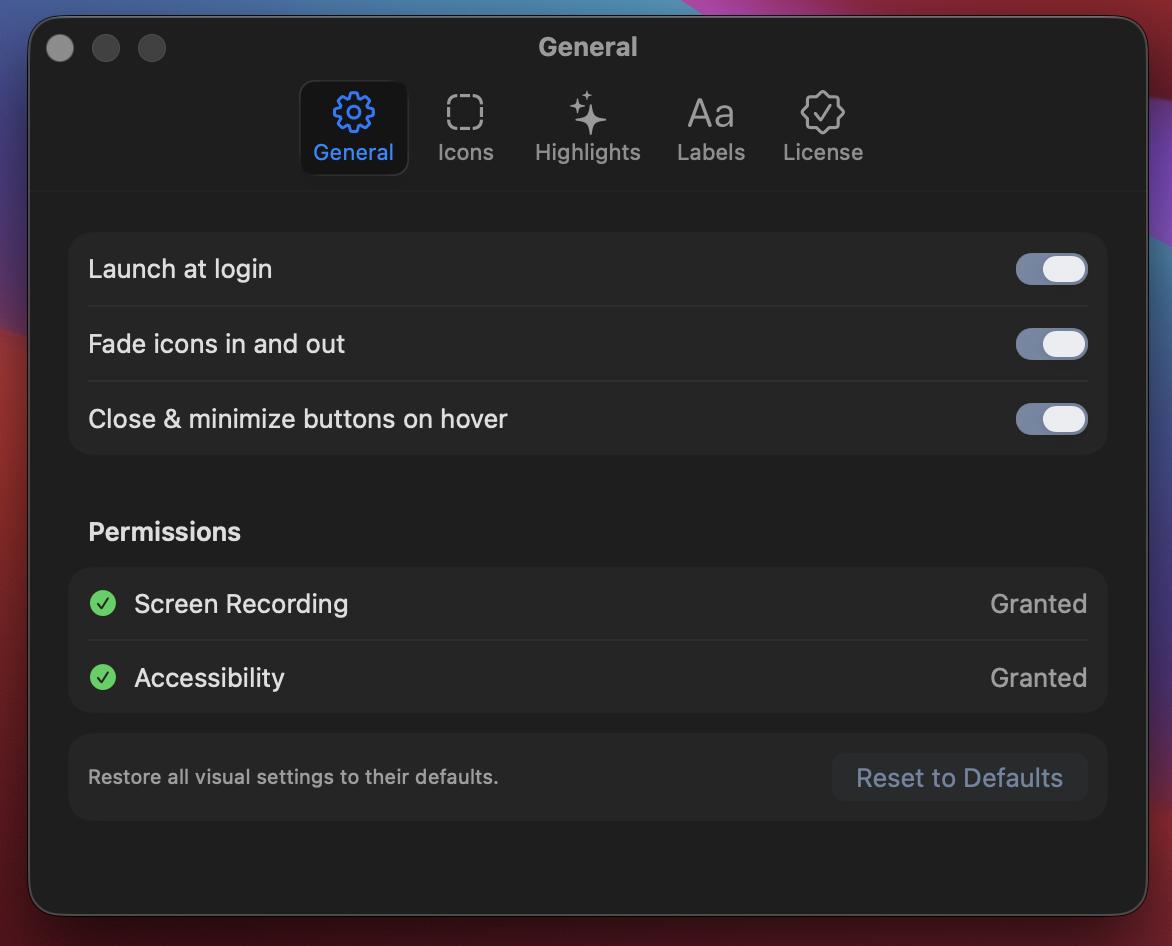
General settings
Launch at login, permission status, global on/off toggles, debugging and app version.
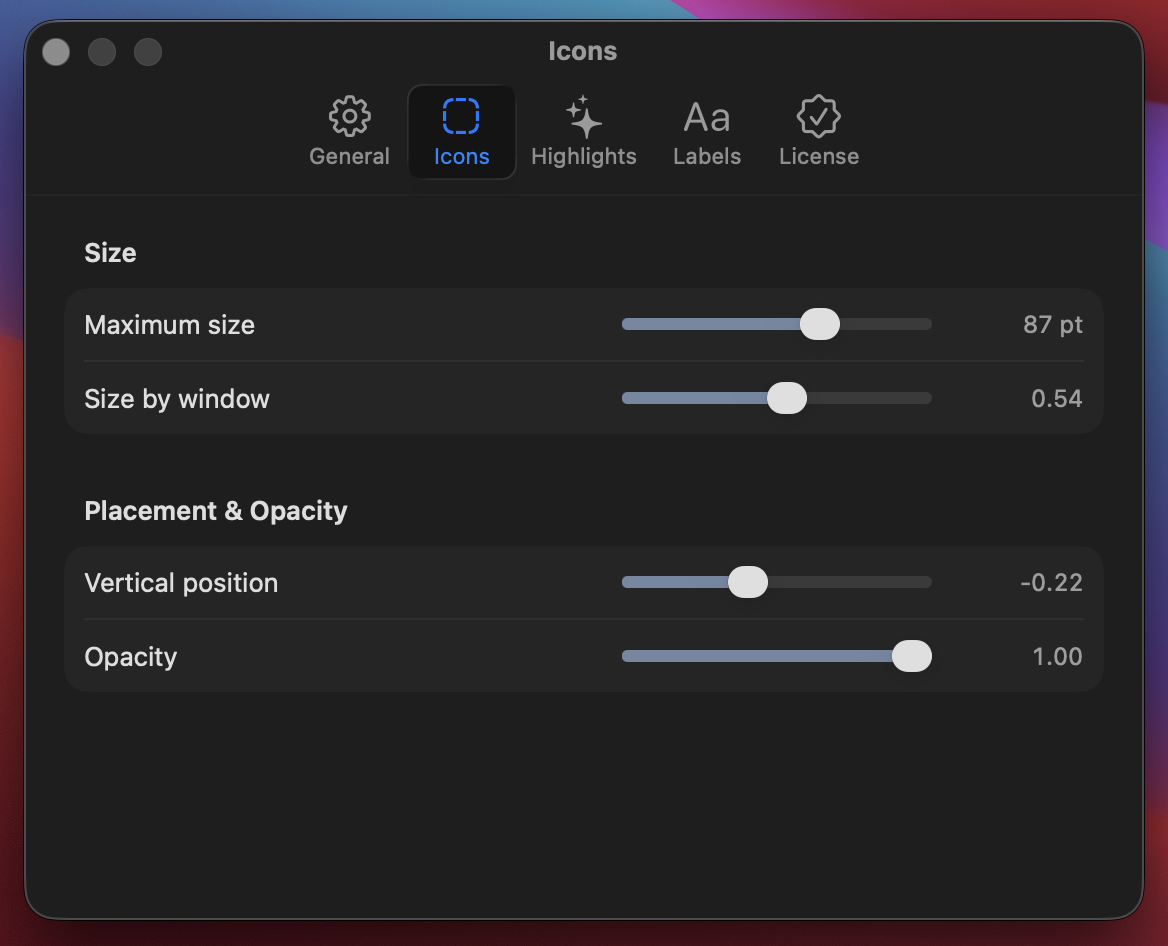
Icon settings
Control icon size, opacity, and how much each window's size influences the overlay.
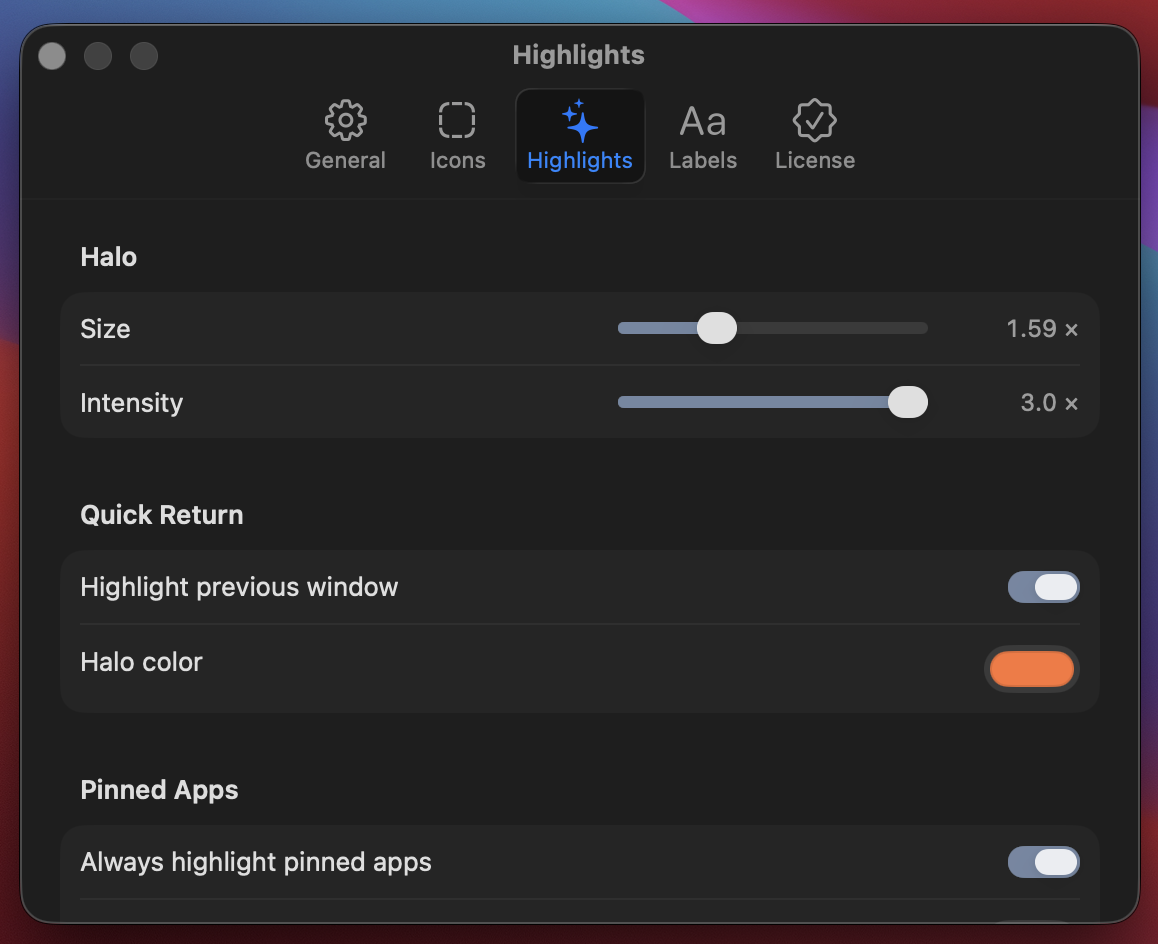
Highlight settings
Adjust Quick Return and pinned-app halos: size, intensity, and colour.
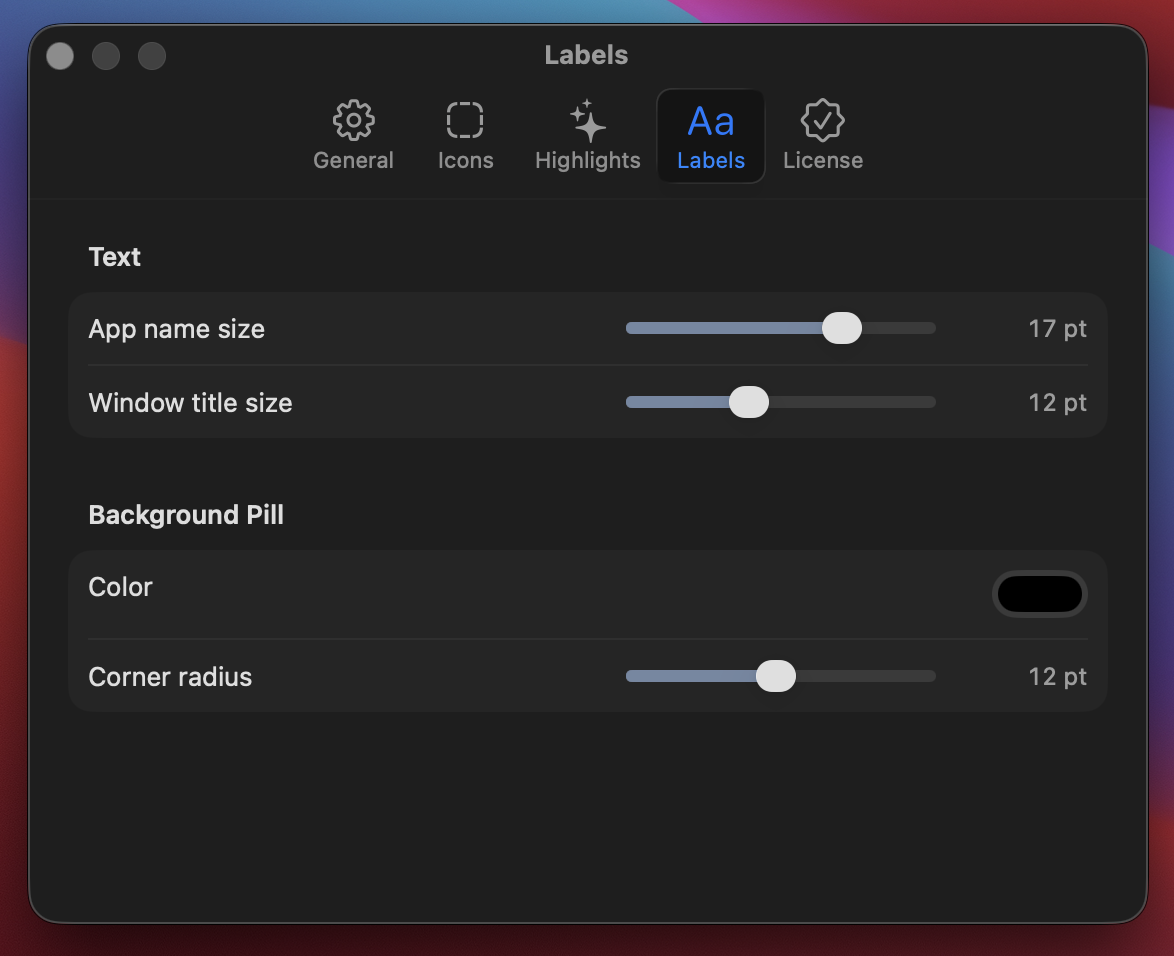
Label settings
Set app name and window title font sizes, plus the background pill opacity.
Two permissions. Nothing else.
Exactly what ExposeIcons asks for, and why macOS requires it.
Screen Recording
For reading window information — which app owns each window, and its title.
Accessibility
For the close and minimize buttons that appear on hover.
Both permissions are visible in Preferences → Permissions, with shortcuts into the matching System Settings panes.
Screen Recording sounds like it's about capturing your screen, but ExposeIcons never takes screenshots, records video, or sends anything anywhere. macOS just happens to gate "which app owns this window, and what's its title" behind the same permission it uses for actual screen capture — there's no separate, lighter-weight permission for it. ExposeIcons only reads that window list to know which icon and label to stamp on each Mission Control thumbnail.
Accessibility is what lets the × and − buttons on each icon actually do something. Clicking a button that closes or minimizes a window that belongs to a different app is exactly the kind of "control another app on your behalf" action macOS locks behind Accessibility permission. It's also needed to catch your click on those buttons at all — Mission Control would otherwise grab the click first before ExposeIcons ever saw it.
Neither permission is used passively or in the background beyond what's described above, and nothing about your windows, titles, or activity ever leaves your Mac.
Simple pricing
Try everything free for 14 days. Keep it forever with a one-time license.
- Every feature unlocked
- No account, no sign-up
- Works fully offline
- Yours forever, all updates
- Use on up to 3 Macs
- 14-day money-back guarantee
Secure checkout by Stripe · Your key arrives instantly on-screen and by email · Refund policy
Changelog
What's new in ExposeIcons, release by release.
Plays nicely with automation tools
- Fixed: while Mission Control was closed, accessibility and automation tools (Claude's computer use, screen readers, window managers) saw an invisible ExposeIcons window covering every display, and could refuse to click or misidentify the app under the pointer. ExposeIcons now keeps nothing on screen outside Mission Control
Hotfix for macOS 27.0.1
- Fixed: on macOS 27.0.1 with more than one display, icons no longer appeared at all in Mission Control
- Fixed: on a large external display, some windows got an icon and others did not
- Fixed: icons could appear up to a second late, or stay frozen over the windows after closing Mission Control
- Improved: icons follow their windows much more smoothly while Mission Control opens and closes, including when the trackpad gesture is held or reversed part-way
Hotfix for macOS 27
- Fixed: on macOS 27, minimizing or closing a window from Mission Control could still make every icon disappear — Mission Control enlarges the remaining thumbnails, which looked like an exit
Hotfix for macOS 27
- Fixed: on macOS 27, clicking an icon inside Mission Control no longer selected that window — you had to click the thumbnail next to it
Hotfix for macOS 27
- Fixed: on macOS 27, minimizing a window with the − button inside Mission Control made every icon disappear until Mission Control was reopened
macOS 27 support
- Fixed: on macOS 27 (Golden Gate) Mission Control was never recognised and no icons appeared at all. Earlier macOS versions are unaffected
- First stable release since 1.0 — includes everything from the 1.0.1, 1.0.2 and 1.0.3 betas below, and runs on macOS 14 (Sonoma) and later
Safer close & minimize buttons, no more freezes
- New: choose where the × and − buttons sit on an icon — keep them on the top corners, or move them to the bottom corners (General → Show close & minimize buttons at the bottom)
- New: optional double click to close or minimize, so a stray click while reaching for a window's icon can't close it by accident (General → Require double click to close or minimize)
- Fixed: turning the Accessibility permission off could leave the whole Mac barely usable — the pointer and keyboard kept working, but clicks did nothing in any app until ExposeIcons was force-quit
- Fixed: on Macs with a large second display, Mission Control could go unrecognised and no icons appeared at all — on either screen — and once it started, it kept happening until the app was relaunched
- Fixed: icons rendered at about half size on a large external monitor
- Fixed: clicking − on a window whose app had stopped responding no longer stalls clicks system-wide
Much lower background CPU use
- Uses far less CPU and battery while Mission Control is closed — measured 3.8× less on an M-series Mac. Mission Control itself is unchanged and still runs at full smoothness
- New preference: General → Power → Responsiveness — Performance, Balanced or Conservative
- Fixed: icons on a built-in display were shrunk by large windows on an external monitor; each screen is now scaled independently
- Fixed: icons fade out more reliably on quick Mission Control taps, and fade sooner after closing
macOS 14 and 15 support
- Fixed: the app refused to launch on anything below macOS 26.4 with an “unsupported for this OS” error. It now runs on macOS 14 (Sonoma) and later
- If you downloaded ExposeIcons on macOS 14 or 15 and could not open it, download it again — the previous release could not offer you an automatic update
Initial release
- Restore app icons, names and window titles in Mission Control
- One overlay per display, following thumbnails across virtual desktops
- Close and minimize windows by hovering their icon
- Quick Return halo to jump back to your previous window
- Pinned apps with permanent, colour-coded halos
- General, Icon, Highlight and Label preference panes